Navigating the System
Accessing the Application
To access the HighRadius Credit Cloud application, copy and paste the following link in the web browser or click the link holding Ctrl Key on the keyboard: http://cloud.highradius.com
|
|
Information The following are the recommended browsers for the Order to Cash applications:
|

Logging in to the Application
To login to the application enter your account information in the Username and Password fields, then click Submit.
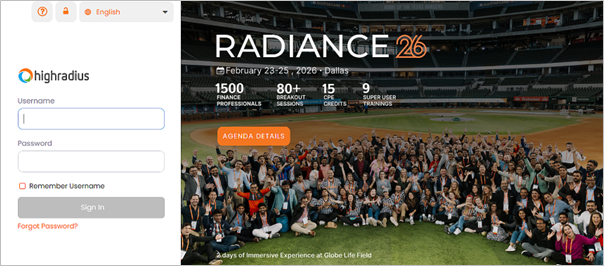
Other actions on the Login screen:
|
Link |
Action |
|
Remember Username |
Select the checkbox to save your Username so that it can be auto-filled the next time you log in to the application. |
| Forgot Password? |
Click this link to reset your password. You will be prompted to provide a valid Username and official email address. A One Time Code (OTC) will be sent to your official email address so that you can use it to reset your password. Refer to section Using Forgot/Reset Password for more details. |
|
Unlock Account |
Click the Lock icon if your account has been locked. You will be prompted to provide a valid login and official email address. A One Time Code (OTC) will be sent to your official email address so that you can use it to unlock your account. Refer to section Unlocking the Account for more details. |
|
Having issues with login |
Click the Help or Question mark icon to view the related help document and information on how to reach out to Customer Support. |
Using Forgot/Reset Password
If you forget the password, follow these steps:
- Click the Forgot Password?? link on the login screen.
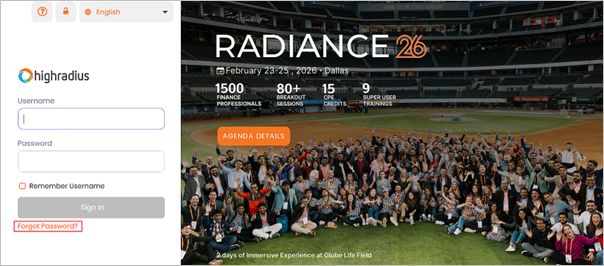
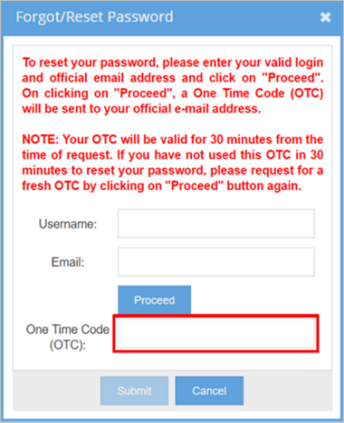
The Forgot Password window is displayed..
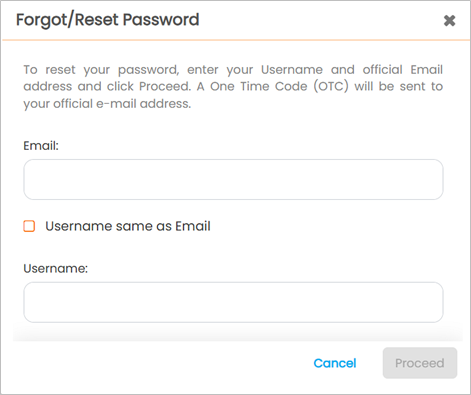
- Enter a valid Email and Username and click Proceed.
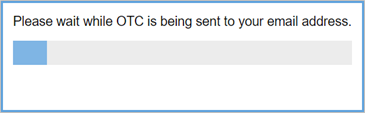
- With this, a One Time Code (OTC) will be sent to your registered email address. A process window will be displayed stating, OTC is being sent to the user’s registered email address.
After processing OTC, the Info window will be displayed stating that the OTC has been sent to your official email address.
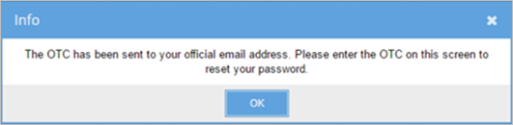
- Click OK to close the Info window.
- Enter the OTC from the received email in the Forgot Password window.
|
|
Note The OTC that you receive to your email will be valid only for 24 hours. |

- Click Submit to proceed.
The Change Password window is displayed.
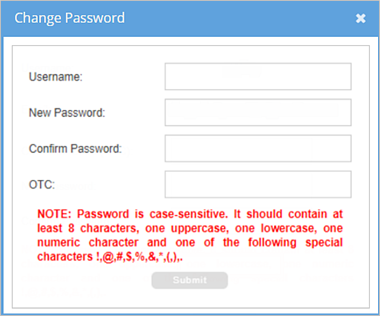
- Enter the New Password. Make sure to follow the password requirements mentioned on the pop-up window and re-enter it in Confirm Password textbox.
- Click Submit to save the new password for the selected username, or Cancel to close the dialog window canceling the operation.
If you attempt to reset the password with any of the last five passwords, the following pop-up displays:
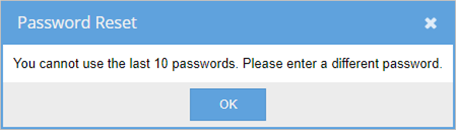
Click OK to close the pop-up.
Unlocking the Account
To unlock account, follow these steps:
- Click the Unlock Account button on the login screen.
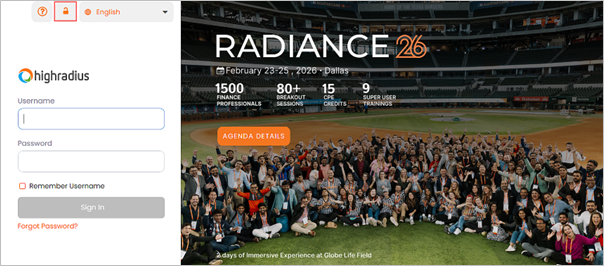
The Unlock Account window is displayed
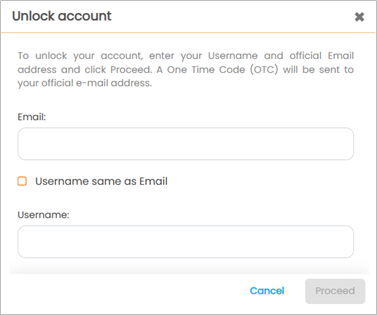
- Enter a valid Username and Email and click Proceed.
- With this, a One Time Code (OTC) will be sent to your registered email address. A process window will be displayed stating, OTC is being sent to the user’s registered email address.
- Enter the OTC from the received email in Unlock Account window.
|
|
Note The OTC that you receive to your email will be valid only for 24 hours. |
- Click Submit to proceed.
The Change Password window is displayed.
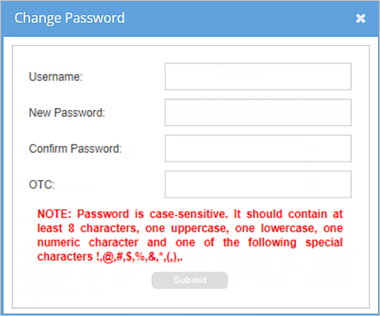
- Enter the New Password. Make sure to follow the password requirements mentioned on the pop-up window and re-enter it in Confirm Password text-box.
- Click Submit to save the new password for the selected username or Cancel to close the dialog window canceling the operation.
- Upon clicking Submit, the account will be unlocked and you will be able to login by entering your Username and Password.
If you attempt to reset the password with any of the last five passwords, the following pop-up displays.
Click OK to close the pop-up.
Application Layout
After logging into the application, you will be directed to the default tab set in the user profile. For reference, see section Main Menu. The application layout gives an overview of configured tabs and corresponding features of the application.
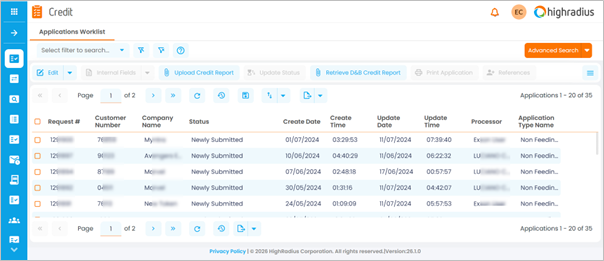
Main Menu
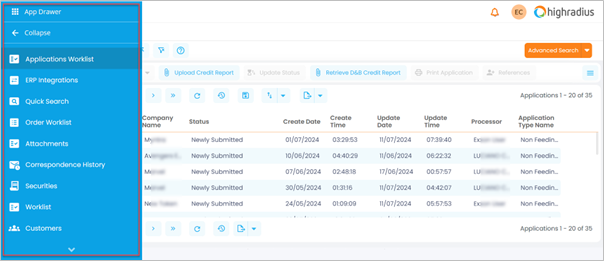
The main menu bar or the App Drawer is located at the top-left part of the application and consists of tabs for the different modules of the application for quick access.
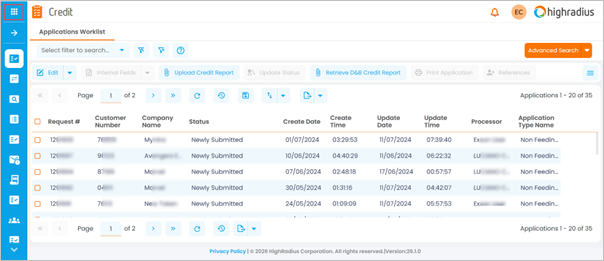
Click the Bento menu icon to view the tabs.
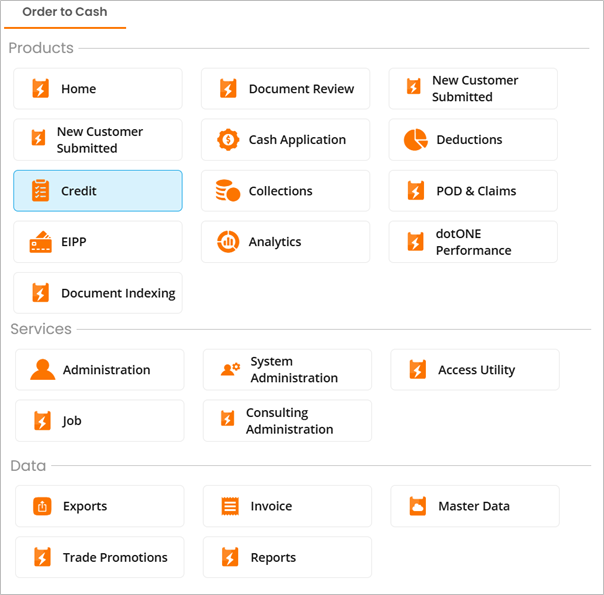
Click the necessary tab in the main menu to navigate to respective modules.
|
|
Note Access to the tabs in the main menu changes from customer to customer (User), as it depends on the subscription, security profile, or business agreement made by the respective customer. To modify the order of the tabs or to set the default tab to be displayed after user login, access Administration tab in the application. |
Sub Menu
The sub menu bar is located beneath the main menu and consists of tabs for the different sections of the corresponding module.
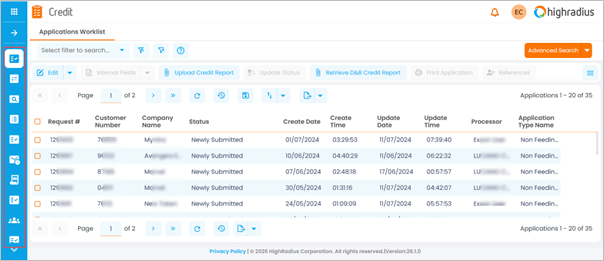
Click the necessary tab in the sub menu to navigate different sections of the parent module.
|
|
Note Click the Arrow icon to expand the left panel.
Click Collapse to collapse the left panel. |
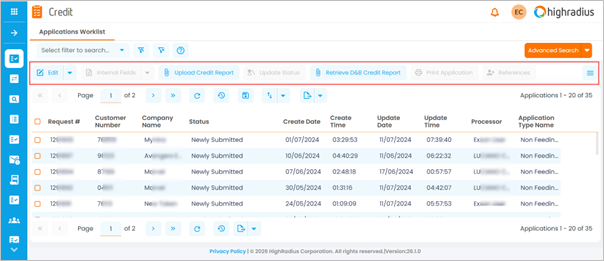
Tool Bar
Tool bar consists of the tools and functional buttons to operate on the selected section. The buttons will vary depending on the selected sub menu option.